
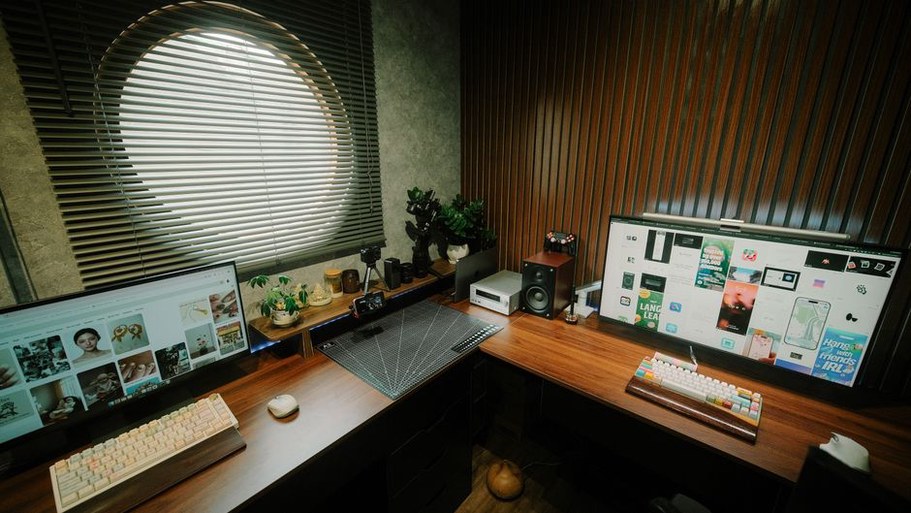
If your shoulders creep toward your ears while you work, look at the desk before blaming the chair. A keyboard set too far back makes you reach forward; a mouse squeezed beside a stack of papers can leave one arm tense. Bring both within easy reach, relax your shoulders, and see how the position feels after a few minutes of ordinary work. That tells you more than holding a perfect-looking pose.
You don't need a separate room for a comfortable home office. You do need enough room to read, type, write, and take breaks without constantly working around your setup. If your desk also hosts stamps, paper, and the occasional card project, get the work position comfortable first. Bring out the creative supplies when you're ready for them.
Start with the chair and the surface you already have
Sit back with your feet supported and your thighs roughly level or sloping gently downward. If your feet dangle, try a stable footrest or a firm box that won't slide. But if the chair is too high for the desk and your shoulders lift when you type, raising your feet won't fix the reach on its own. You may need to adjust the chair, desk, and input devices together.
A small cushion or rolled towel behind your lower back might make the chair more comfortable. Test it through a normal work session: it should help you sit back, not force an exaggerated arch. Leave space under the desk to shift your legs, too. A bin of paper offcuts belongs beside the desk, not against your knees.
Place the keyboard where your elbows can stay near your sides and your wrists can remain relatively straight. Keep the mouse close enough that you don't have to reach for it. These are starting points, not positions to hold rigidly all day. If you have persistent pain or numbness, ask a qualified health professional for advice rather than continuing to swap accessories.
Put the screen where your eyes can rest
A laptop flat on the desk can leave you looking down for hours. For longer sessions, raising the screen and using a separate keyboard and mouse may help you keep your head in a more neutral position. Try placing the monitor about an arm's length away, then adjust for the screen size and your vision. You should be able to read without leaning in.
Set the top portion of the display around eye level or a little lower. Look across the screen: if you have to tip your chin up, lower it. Progressive lenses may call for an even lower screen. Try increasing the text size before pulling the display so close that your keyboard and reference papers no longer fit.
Glare can look like a brightness problem. If you see a window or bare bulb reflected on the screen, turn the monitor slightly or position it perpendicular to the window. That may help more than turning the brightness all the way up.
Give each task the right light
Screen work and paper work need different lighting. Around a monitor, you want manageable contrast with the room. For handwriting, cutting, or checking a stamped impression, you need clear light on the work surface. A movable task lamp lets you aim the light at a notebook or card panel without shining it in your eyes or across the screen.
If you're right-handed, a lamp on your left can reduce shadows from your hand; switch sides if you write or cut with your left. Keep bulbs and hot lamp heads away from loose paper and fabric. And if you're matching cardstock at the desk, check the samples in daylight when you can. Warm indoor light can make two nearly matching colors look more alike than they are.
Make room for movement, not just equipment
Even a well-arranged chair won't make sitting still indefinitely comfortable. Build in small changes of position that don't break your train of thought: stand to review a printout, refill your water between tasks, or stretch your hands after detailed mouse work. If you tend to lose track of time, try a gentle reminder rather than one you'll dismiss all day.
Make it easy to get out of your chair. Cords underfoot, a bag against a chair leg, or a wheeled cart parked behind you can all get in the way. A cable clip and a regular spot for the bag may be enough to clear the route. If you use a standing desk, switch positions when it feels right; standing isn't an endurance test.
Keep the active area clear
The space directly in front of you is the most useful part of the desk. Save it for what's in progress: a keyboard, a notebook, or a card base waiting for a stamped sentiment. Keep often-used items within reach, but don't line the whole desk edge with supplies. They can push the keyboard back and bring back the forward reach you just fixed.
A quick reset between computer work and paper crafting
- Clear one working rectangle. Move the keyboard or craft mat aside rather than building the next activity on top of it.
- Bring out the tools for this step. A trimmer, adhesive, and your chosen paper take up less room than an open box of embellishments.
- Recheck the light and chair. Detailed cutting may need closer task lighting; typing calls for easy access to the keyboard and mouse.
- Put sharp tools away before switching back. A capped craft knife or closed scissors shouldn't be left hiding under a notebook.
This isn't a new filing system; it's a way to keep both tasks comfortable. A shallow tray can hold the pieces for one unfinished card instead of letting them spread into the mouse area. Keep drinks away from ink pads, electronics, and paper projects. If there's room, give your drink a stable spot off the main work surface.

Adjust the air and sound before replacing furniture
A stuffy or overly warm room can be distracting even when the desk is set up well. Check for a blocked vent, or open a window briefly if it's safe to do so. Aim a fan where it will move air without scattering paper scraps. Keep paper and adhesives away from damp windowsills and heat sources, where they may warp or change texture.
With noise, start with the interruption you can control. Soft furnishings may reduce echo in a bare room; a closed door can help with household noise. Headphones can be useful for focused work, but keep the volume comfortable and stay aware of sounds you need to hear at home. If calls are the issue, test your microphone placement before deciding you need a quieter room.
Choose changes by the friction they remove
Before buying anything, spend a workday noticing when you shift position, squint, reach, or stop to move something. Then try one adjustment aimed at the problem that comes up most often. A footrest won't do much for window glare, and a bigger desk may not help if the keyboard is simply too far away.
If you do consider buying something, treat any price ranges as general budgeting guidance, not personal financial advice. Try reversible changes first: adjust the chair, enlarge on-screen text, move the lamp, or use a sturdy box as a temporary footrest. Before tomorrow's first task, clear a space about the width of your forearms in front of the keyboard and put the mouse beside it. See how that feels once you're actually working.


